2.9 MP3 Music Player
A full-featured music player with playback controls and volume adjustment.
Overview
This example creates a complete music player UI. It scans the SD card’s /music/ folder for MP3 files, displays the current track title, and provides play/pause, stop, skip, and volume controls — all driven by the touchscreen.
What You’ll Learn
Scanning an SD card for MP3 files
Building a music player UI with transport buttons
Integrating I2S audio playback with LVGL state management
Using a slider widget for volume control
Before You Begin
Complete the setup steps in Preparation before continuing.
Note
Use the recommended Arduino IDE settings in Recommended Board Settings unless this lesson says otherwise.
Open the example sketch from the code package:
LAFVIN-ESP32-S3-Multimedia-Kit-main/2.LVGL/09_LVGL_Music/09_LVGL_Music.ino
Note
Before uploading, create a /music/ folder on your SD card and copy one or more MP3 files into it.
Signal |
ESP32-S3 |
|---|---|
I2S BCLK |
GPIO 42 |
I2S LRC |
GPIO 14 |
I2S DOUT |
GPIO 41 |
SD CMD |
GPIO 38 |
SD CLK |
GPIO 39 |
SD D0 |
GPIO 40 |
Upload and Test
Insert a Micro SD card with MP3 files in the
/music/folder.Connect the board with a USB Type-C data cable.
Open
09_LVGL_Music.inoin Arduino IDE.In the Tools menu, select
ESP32S3 Dev Moduleas the board and choose the correct serial port.Click Upload.
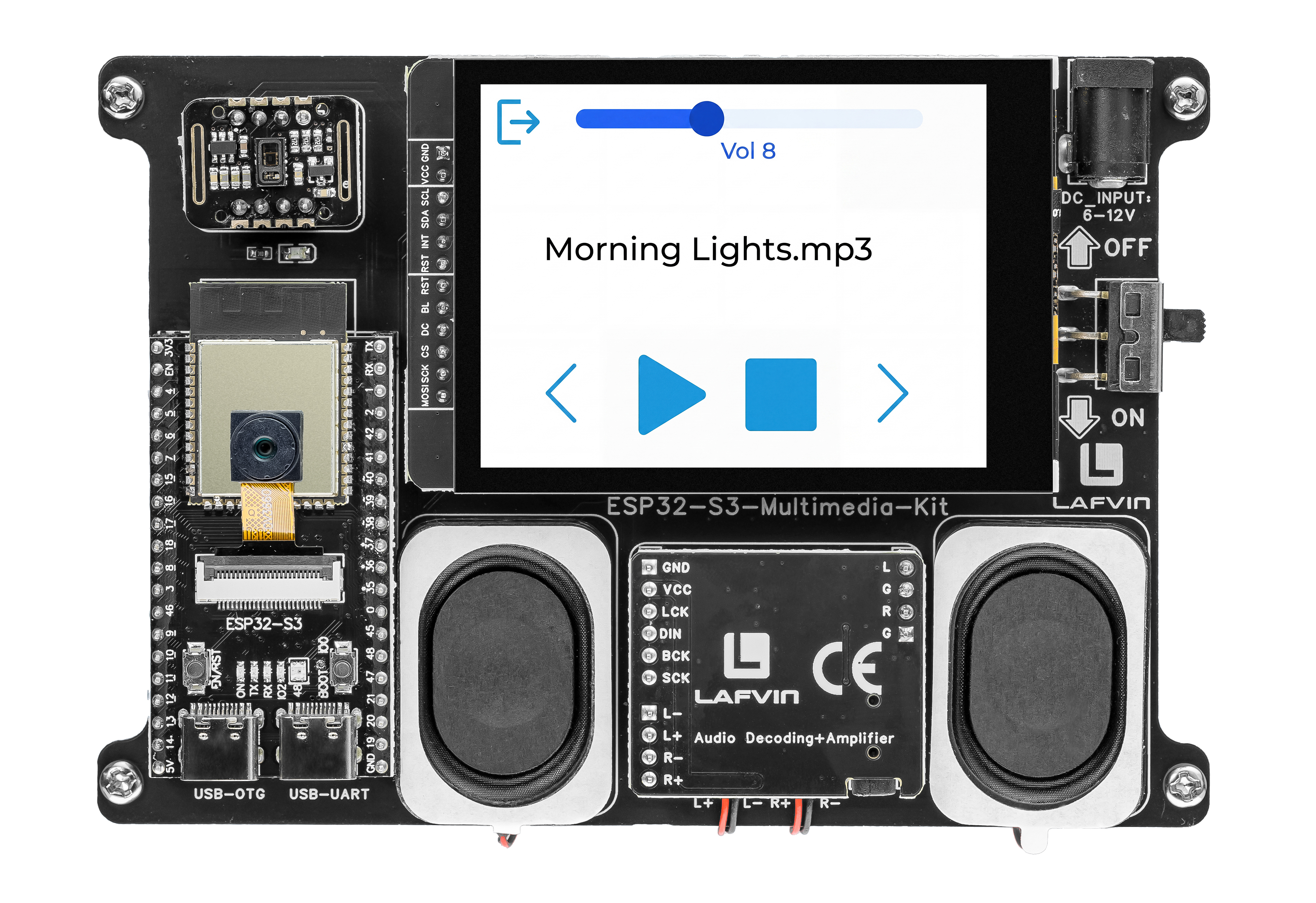
The music player screen shows:
The current track title at the top
Transport buttons: prev, play/pause, stop, next
A volume slider with numeric readout
The player automatically begins playing the first MP3 file it finds. Use the touchscreen to control playback.
How the Code Works
The music player logic is mainly implemented in music_ui.cpp.
Track Loading
The music_ui_prepare_first_track() function scans the linked list populated from /music/ and primes the title label with the first filename without auto-playing it. When the user taps play, music_ui_play_index() constructs the full SD path and calls s_audio.connecttoFS() to start decoding.
static bool music_ui_play_index(int index) {
  if (s_music_count <= 0) {
    s_track_loaded = false;
    s_music_paused = false;
    music_ui_set_title_text(NULL);
    music_ui_refresh_controls();
    return false;
  }

  if (index < 1) {
    index = s_music_count;
  } else if (index > s_music_count) {
    index = 1;
  }

  char *file_name = list_find_node(list_music, index);
  if (file_name == NULL) {
    return false;
  }

  s_audio.stopSong();

  String file_path = String(MUSIC_FOLDER) + "/" + file_name;
  s_audio.connecttoFS(SD_MMC, file_path.c_str());
  s_music_index = index;
  s_track_loaded = true;
  s_music_paused = false;

  music_ui_set_title_text(file_name);
  music_ui_refresh_controls();
  return true;
}
The index is 1-based and wraps around at both ends — going below 1 wraps to s_music_count, and exceeding s_music_count wraps to 1.
Play/Pause & Transport Controls
The music_ui_toggle_play_pause() function implements a three-state toggle: if no track is loaded it starts the current index, otherwise it calls s_audio.pauseResume() and flips the s_music_paused flag. The middle button icon swaps between play and pause symbols accordingly.
static void music_ui_toggle_play_pause() {
  if (s_music_count <= 0) {
    return;
  }

  if (!s_track_loaded) {
    music_ui_play_index(s_music_index > 0 ? s_music_index : 1);
    return;
  }

  s_audio.pauseResume();
  s_music_paused = !s_music_paused;
  music_ui_refresh_controls();
}
The previous (music_ui_play_previous) and next (music_ui_play_next) functions decrement or increment the index with wrap-around, then call music_ui_play_index(). The stop button calls music_ui_stop_current(), which invokes s_audio.stopSong() and resets s_track_loaded.
Volume Control
The volume slider ranges from 0 to 21 and updates the Audio library in real time. A numeric label below the slider shows the current value.
  lv_slider_set_range(ui->volume_slider, 0, 21);
  lv_slider_set_value(ui->volume_slider, kDefaultVolume, LV_ANIM_OFF);

static void on_volume_slider_changed(lv_event_t *event) {
  if (lv_event_get_code(event) != LV_EVENT_VALUE_CHANGED) {
    return;
  }

  int volume = lv_slider_get_value(g_music_ui.volume_slider);
  s_audio.setVolume(volume);
  music_ui_update_volume_label(volume);
}
Audio Loop & Auto-Advance
The music_ui_loop() function, called from the sketch’s loop(), feeds the audio decoder with s_audio.loop() on every iteration. When a track reaches its end, the audio_eof_mp3() callback sets s_play_next_pending = true, and the loop advances to the next track outside the audio callback context.
void music_ui_loop(void) {
  s_audio.loop();

  if (s_play_next_pending) {
    s_play_next_pending = false;
    music_ui_play_next();
  }
}

void audio_eof_mp3(const char *info) {
  Serial.print("eof_mp3     ");
  Serial.println(info);
  s_play_next_pending = true;
}
In the provided sketch:
The
Audiolibrary is initialised with I2S pinout (BCLK=42, LRC=14, DOUT=41) inmusic_ui_audio_init()Transport buttons are
lv_imgobjects with transparent backgrounds — only the icon images are visiblemusic_ui_refresh_controls()enables or dims all transport buttons based on whethers_music_count > 0
Try This Next
Add more MP3 files to the
/music/folder and see the track list growDisplay the track duration or current playback position
Add a shuffle or repeat mode button