2.14 SD Card File Manager
Browse, navigate, and manage files on the SD card through a graphical file explorer.
Overview
This example creates a complete file manager for the SD card. You can browse folders, view file details (name, size), delete files, and navigate through the directory tree — all from the touchscreen, no computer needed.
What You’ll Learn
Building a file system explorer with the LVGL list widget
Implementing directory navigation with a breadcrumb path display
Displaying file metadata (name, size, path)
Deleting files from the SD card through the UI
Before You Begin
Complete the setup steps in Preparation before continuing.
Note
Use the recommended Arduino IDE settings in Recommended Board Settings unless this lesson says otherwise.
Open the example sketch from the code package:
LAFVIN-ESP32-S3-Multimedia-Kit-main/2.LVGL/14_LVGL_File_Manager/14_LVGL_File_Manager.ino
Note
You need a Micro SD card formatted as FAT32 inserted. The SD card from 1.4 SD Card (SDMMC) with test files will work perfectly.
Upload and Test
Insert a FAT32-formatted Micro SD card.
Connect the board with a USB Type-C data cable.
Open
14_LVGL_File_Manager.inoin Arduino IDE.In the Tools menu, select
ESP32S3 Dev Moduleas the board and choose the correct serial port.Click Upload.
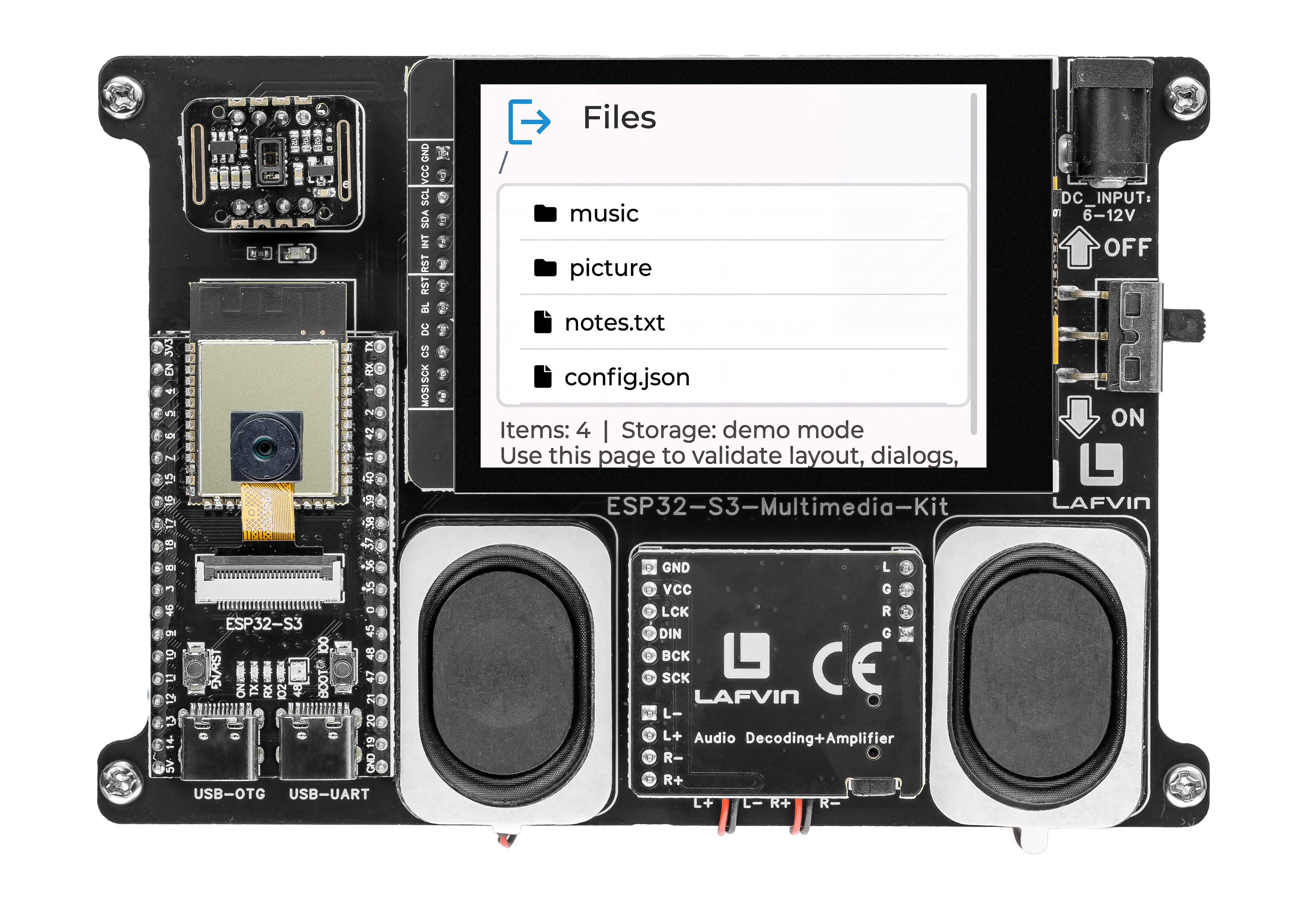
After uploading, the screen shows:
A path breadcrumb at the top (e.g.,
Path: /music/)A scrollable list of files and folders with icons and file sizes
A status bar at the bottom showing item count and storage usage
Tapping a folder navigates into it. Tapping a file opens a dialog with its name, size, path, and type — plus a Delete button to remove it. Tap the exit button to navigate up to the parent directory.
How the Code Works
The file manager UI logic is mainly implemented in File_Manager_ui.cpp.
SD Card Initialisation
The SD card is configured with the standard ESP32-S3 SDMMC pinout (CLK=39, CMD=38, D0=40). The init_sd_card() function sets these pins, mounts the filesystem, and returns early if the card is already ready.
bool init_sd_card(void) {
  if (s_sd_ready) {
    return true;
  }

  Serial.println("Initializing SD card for file manager...");
  SD_MMC.setPins(kSdClkPin, kSdCmdPin, kSdD0Pin);

  s_sd_ready = SD_MMC.begin("/sdcard", true, true, SDMMC_FREQ_DEFAULT, 5);
  if (!s_sd_ready) {
    Serial.println("SD card mount failed.");
  } else {
    Serial.println("SD card ready.");
  }
  return s_sd_ready;
}
Directory Navigation
The navigate_to() function normalises the target path, opens it as a directory, and refreshes the file list. It returns false if the path is null, empty, or not a valid directory.
bool navigate_to(const char *path) {
  if (path == nullptr || path[0] == '\0') {
    return false;
  }

  const String normalized = normalize_path(path, true);
  File dir = SD_MMC.open(normalized.c_str());
  if (!dir || !dir.isDirectory()) {
    if (dir) {
      dir.close();
    }
    return false;
  }

  copy_string(s_current_path, sizeof(s_current_path), normalized);
  dir.close();
  refresh_file_list();
  return true;
}
The navigate_to_parent() function strips the last path segment and calls navigate_to(), or returns to root if already at the top level.
File Listing
The refresh_file_list() function clears the list widget, adds a .. parent entry when not at root, then iterates over the directory entries. Each entry is stored in a FileEntry struct array (up to 48 entries) and rendered as a list button with the appropriate icon and file size.
s_entry_count = 0;

if (strcmp(s_current_path, "/") != 0) {
  lv_obj_t *parent_btn = lv_list_add_btn(g_file_manager_ui.list, LV_SYMBOL_LEFT, "..");
  lv_obj_add_event_cb(
    parent_btn,
    file_item_event_handler,
    LV_EVENT_CLICKED,
    reinterpret_cast<void *>(static_cast<uintptr_t>(kParentEntryIndex)));
}

File file = dir.openNextFile();
while (file && s_entry_count < kMaxEntries) {
  const String raw_name = String(file.name());
  const String entry_name = basename_from_path(normalize_path(raw_name, false));
  String full_path;
  if (strcmp(s_current_path, "/") == 0) {
    full_path = normalize_path("/" + entry_name, file.isDirectory());
  } else {
    full_path = normalize_path(String(s_current_path) + "/" + entry_name, file.isDirectory());
  }
  copy_string(s_entries[s_entry_count].name, sizeof(s_entries[s_entry_count].name), entry_name);
  copy_string(s_entries[s_entry_count].path, sizeof(s_entries[s_entry_count].path), full_path);
  s_entries[s_entry_count].is_dir = file.isDirectory();
  s_entries[s_entry_count].size_bytes = static_cast<size_t>(file.size());

  const char *symbol = s_entries[s_entry_count].is_dir ? LV_SYMBOL_DIRECTORY : LV_SYMBOL_FILE;
  lv_obj_t *btn = lv_list_add_btn(g_file_manager_ui.list, symbol, s_entries[s_entry_count].name);
  lv_obj_add_event_cb(
    btn,
    file_item_event_handler,
    LV_EVENT_CLICKED,
    reinterpret_cast<void *>(static_cast<uintptr_t>(s_entry_count)));

  if (!s_entries[s_entry_count].is_dir) {
    lv_obj_t *btn_label = lv_obj_get_child(btn, 1);
    if (btn_label != nullptr) {
      char size_text[24];
      format_size(s_entries[s_entry_count].size_bytes, size_text, sizeof(size_text));
      lv_label_set_text_fmt(btn_label, "%s  (%s)", s_entries[s_entry_count].name, size_text);
    }
  }

  ++s_entry_count;
  file.close();
  file = dir.openNextFile();
}
The bottom status bar is then updated with the item count and storage usage (Items: N | Storage: used / total MB).
File Deletion
The delete_event_handler() is invoked when the user taps the Delete button in the file dialog. It removes the selected file from the SD card and refreshes the list.
void delete_event_handler(lv_event_t *e) {
  if (lv_event_get_code(e) != LV_EVENT_CLICKED) {
    return;
  }

  if (s_selected_file_path[0] == '\0') {
    hide_dialog();
    return;
  }

  if (SD_MMC.remove(s_selected_file_path)) {
    char status_buffer[96];
    snprintf(status_buffer, sizeof(status_buffer), "Deleted: %s", s_selected_file_name);
    set_status_text(status_buffer);
  } else {
    char status_buffer[96];
    snprintf(status_buffer, sizeof(status_buffer), "Delete failed: %s", s_selected_file_name);
    set_status_text(status_buffer);
  }

  hide_dialog();
  refresh_file_list();
}
In the provided sketch:
file_item_event_handler()dispatches list-item taps: folders callnavigate_to(), files callshow_file_dialog(), and..callsnavigate_to_parent()show_file_dialog()displays file metadata (type, size, path) in a popup and disables the Delete button for directoriesThe exit button in the header calls
navigate_to_parent(), moving up one directory levelFile sizes are formatted by
format_size(), which chooses B, KB, or MB units automatically
Try This Next
Add a “New Folder” button to create directories from the touchscreen
Display file modification dates alongside sizes
Add drag-to-scroll for long file lists