2.13 WiFi Connection Manager
Scan for WiFi networks and connect using an on-screen keyboard for password entry.
Overview
This example builds a complete WiFi management UI. It scans for nearby networks, displays them in a scrollable list with signal strength, and provides an on-screen keyboard for entering passwords — all through the touchscreen.
What You’ll Learn
Scanning WiFi networks with
WiFi.scanNetworks()Populating and refreshing an LVGL list widget
Building a password dialog with
lv_textareaandlv_keyboardDisplaying connection status and assigned IP address
Before You Begin
Complete the setup steps in Preparation before continuing.
Note
Use the recommended Arduino IDE settings in Recommended Board Settings unless this lesson says otherwise.
Open the example sketch from the code package:
LAFVIN-ESP32-S3-Multimedia-Kit-main/2.LVGL/13_LVGL_WIFI/13_LVGL_WIFI.ino
Upload and Test
Connect the board with a USB Type-C data cable.
Open
13_LVGL_WIFI.inoin Arduino IDE.In the Tools menu, select
ESP32S3 Dev Moduleas the board and choose the correct serial port.Click Upload.
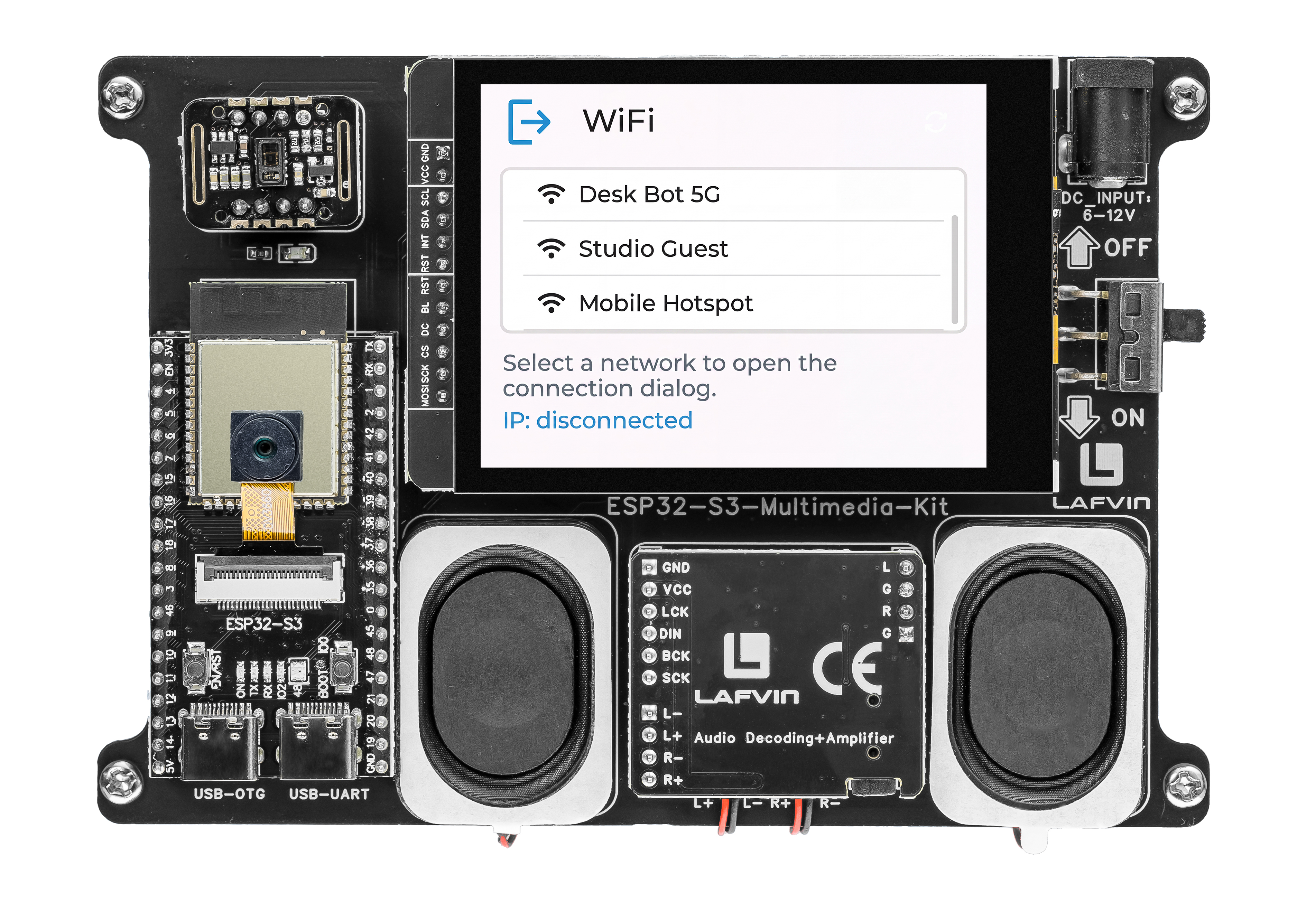
After uploading, the screen shows:
A “Scan” button — tap it to search for nearby WiFi networks
A scrollable list of detected networks, each showing the SSID and signal strength indicator
A status label at the bottom (“Disconnected” or “Connected”)
Tap any network in the list. A dialog appears with:
The network name (SSID) displayed at the top
A text area for the password
An on-screen keyboard to type the password
Back and Join buttons
Enter the password and tap Join. The status label updates to show the connection progress and, if successful, the assigned IP address.
How the Code Works
The WiFi manager logic is mainly implemented in Wifi_ui.cpp.
Network Scanning
The scan_networks() function sets the ESP32 to station mode, disconnects any previous session, and calls WiFi.scanNetworks() with hidden SSID scanning enabled. Results are capped at 12 entries and stored in fixed-size arrays.
void scan_networks(void) {
  set_status_text("Status: Scanning nearby WiFi...");
  set_ip_text("IP: --");

  WiFi.mode(WIFI_STA);
  WiFi.disconnect();
  delay(50);

  const int found = WiFi.scanNetworks(false, true);
  s_scan_count = 0;

  if (found <= 0) {
    rebuild_wifi_list();
    set_status_text("Status: No WiFi found");
    return;
  }

  const int limited_count = (found > kMaxScanResults) ? kMaxScanResults : found;
  for (int i = 0; i < limited_count; ++i) {
    const String ssid = WiFi.SSID(i);
    ssid.toCharArray(s_scanned_ssids[i], sizeof(s_scanned_ssids[i]));
    s_scanned_rssi[i] = WiFi.RSSI(i);
    s_scan_count++;
  }

  WiFi.scanDelete();
  rebuild_wifi_list();

  char buffer[64];
  snprintf(buffer, sizeof(buffer), "Status: Found %u network(s)", static_cast<unsigned>(s_scan_count));
  set_status_text(buffer);
}
Rebuilding the List
The rebuild_wifi_list() function clears the list widget and populates it with buttons — each showing the SSID and RSSI value. An event callback is attached to each button with the array index as user data, so a tap opens the password dialog for the correct network.
void rebuild_wifi_list(void) {
  lv_obj_clean(g_wifi_ui.wifi_list);

  if (s_scan_count == 0) {
    lv_obj_t *label = lv_label_create(g_wifi_ui.wifi_list);
    lv_label_set_text(label, "No WiFi found. Tap refresh to scan again.");
    return;
  }

  for (uint8_t i = 0; i < s_scan_count; ++i) {
    lv_obj_t *btn = lv_list_add_btn(g_wifi_ui.wifi_list, LV_SYMBOL_WIFI, s_scanned_ssids[i]);
    lv_obj_add_event_cb(
      btn,
      wifi_item_event_handler,
      LV_EVENT_CLICKED,
      reinterpret_cast<void *>(static_cast<uintptr_t>(i)));

    lv_obj_t *btn_label = lv_obj_get_child(btn, 1);
    if (btn_label != nullptr) {
      lv_label_set_text_fmt(btn_label, "%s  (%d dBm)", s_scanned_ssids[i], static_cast<int>(s_scanned_rssi[i]));
    }
  }
}
Password Dialog with On-Screen Keyboard
The dialog is built from a single-line password text area and an LVGL keyboard in lowercase text mode. The keyboard’s LV_EVENT_READY auto-triggers connection, while LV_EVENT_CANCEL hides the dialog.
ui->password_area = lv_textarea_create(ui->dialog);
lv_textarea_set_one_line(ui->password_area, true);
lv_textarea_set_password_mode(ui->password_area, true);
lv_textarea_set_placeholder_text(ui->password_area, "Enter password");

ui->keyboard = lv_keyboard_create(ui->overlay);
lv_keyboard_set_mode(ui->keyboard, LV_KEYBOARD_MODE_TEXT_LOWER);
lv_keyboard_set_popovers(ui->keyboard, false);
lv_keyboard_set_textarea(ui->keyboard, ui->password_area);
lv_obj_add_event_cb(ui->keyboard, keyboard_event_handler, LV_EVENT_ALL, nullptr);
Connection Handling
The start_connection() function reads the password from the text area and calls WiFi.begin(). The wifi_ui_loop() polls WiFi.status() each frame — it detects success (WL_CONNECTED) and three failure conditions: timeout, WL_CONNECT_FAILED, and WL_NO_SSID_AVAIL.
void start_connection(void) {
  hide_password_dialog();

  const char *password = lv_textarea_get_text(g_wifi_ui.password_area);
  WiFi.disconnect();
  WiFi.begin(s_selected_ssid, password);

  s_connecting = true;
  s_connect_started_ms = millis();

  char buffer[96];
  snprintf(buffer, sizeof(buffer), "Status: Connecting to %s ...", s_selected_ssid);
  set_status_text(buffer);
  set_ip_text("IP: --");
}

void wifi_ui_loop(void) {
  if (!s_connecting) {
    return;
  }

  const wl_status_t status = WiFi.status();
  if (status == WL_CONNECTED) {
    s_connecting = false;
    char status_buffer[96];
    snprintf(status_buffer, sizeof(status_buffer), "Status: Connected to %s", s_selected_ssid);
    set_status_text(status_buffer);

    const String ip = WiFi.localIP().toString();
    char ip_buffer[64];
    snprintf(ip_buffer, sizeof(ip_buffer), "IP: %s", ip.c_str());
    set_ip_text(ip_buffer);
    return;
  }

  if (millis() - s_connect_started_ms >= kConnectTimeoutMs ||
      status == WL_CONNECT_FAILED ||
      status == WL_NO_SSID_AVAIL) {
    s_connecting = false;
    set_status_text("Status: Connection failed");
    set_ip_text("IP: --");
    WiFi.disconnect();
  }
}
In the provided sketch:
Up to 12 scan results (
kMaxScanResults) are stored ins_scanned_ssidsands_scanned_rssiarrayslv_textarea_set_password_mode()hides the typed characters;set_one_line()keeps the input compactA 15-second timeout (
kConnectTimeoutMs) combined with immediate failure status checks prevents the UI from hangingThe refresh button calls
scan_networks()again to update the list
Try This Next
Save the SSID and password to preferences so you don’t need to re-enter them
Add a signal strength icon (bars) next to each network name
Display the MAC address and RSSI in the connection details