2.7 Camera Live Preview and Capture
Stream live camera video to the TFT screen and capture photos to the SD card.
Overview
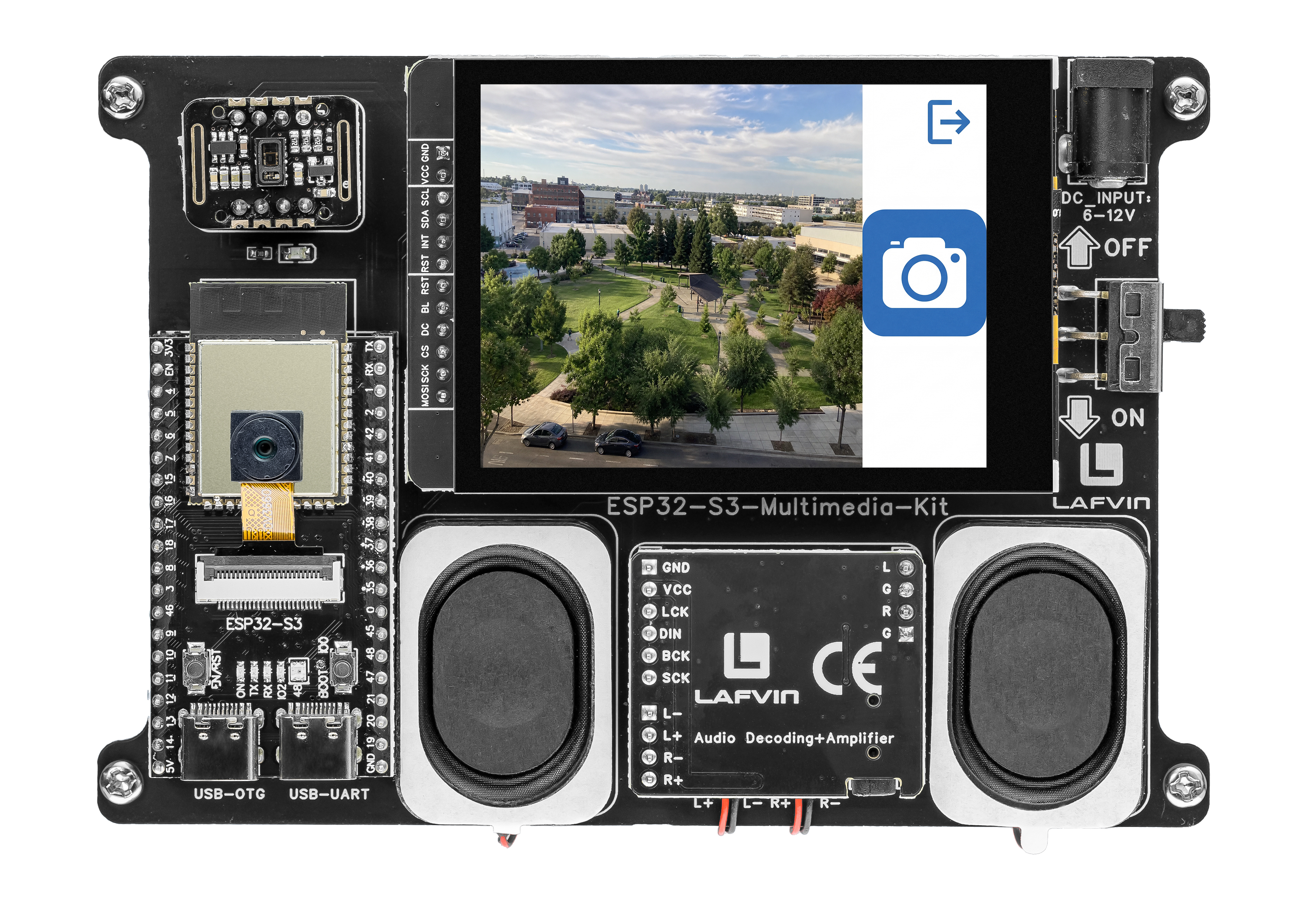
This example turns the board into a handheld camera. It displays a live 240×240 viewfinder on the TFT screen, lets you capture photos as BMP files to the SD card with a single tap, and supports swipe gestures for mirroring and flipping the image.
What You’ll Learn
Streaming camera frames to an LVGL image object in real time
Using a FreeRTOS task for dedicated camera frame grabbing
Double-buffering for tear-free display
Saving BMP files to SD card
Implementing swipe gesture detection
Before You Begin
Complete the setup steps in Preparation before continuing.
Note
Use the recommended Arduino IDE settings in Recommended Board Settings unless this lesson says otherwise.
Open the example sketch from the code package:
LAFVIN-ESP32-S3-Multimedia-Kit-main/2.LVGL/07_LVGL_Camera/07_LVGL_Camera.ino
Note
You need a Micro SD card formatted as FAT32 inserted for photo capture.
Upload and Test
Insert a FAT32-formatted Micro SD card.
Connect the board with a USB Type-C data cable.
Open
07_LVGL_Camera.inoin Arduino IDE.In the Tools menu, select
ESP32S3 Dev Moduleas the board and choose the correct serial port.Click Upload.
After uploading, you see a live 240×240 camera preview on the left side of the screen.
Tap the camera icon (right side, 80×80) to capture a BMP photo to
/picture/on the SD cardSwipe left or right to toggle horizontal mirror
Swipe up or down to toggle vertical flip
Tap the exit icon (top-right corner) to return (used in the All-In-One launcher)
How the Code Works
The camera logic is mainly implemented in camera_ui.cpp (preview, capture, gestures) and camera.cpp (sensor initialisation and mirror/flip control).
Camera Initialisation
The camera_init() function configures the sensor with a designated initialiser list covering all pins, the XCLK frequency (10 MHz), pixel format (RGB565), and frame size (240×240). After initialisation it reads back the sensor handle to set brightness, saturation, and the initial mirror/flip state.
camera_config_t config = {
  .pin_pwdn = PWDN_GPIO_NUM,
  .pin_reset = RESET_GPIO_NUM,
  .pin_xclk = XCLK_GPIO_NUM,
  .pin_sccb_sda = SIOD_GPIO_NUM,
  .pin_sccb_scl = SIOC_GPIO_NUM,

  .pin_d7 = Y9_GPIO_NUM,
  .pin_d6 = Y8_GPIO_NUM,
  .pin_d5 = Y7_GPIO_NUM,
  .pin_d4 = Y6_GPIO_NUM,
  .pin_d3 = Y5_GPIO_NUM,
  .pin_d2 = Y4_GPIO_NUM,
  .pin_d1 = Y3_GPIO_NUM,
  .pin_d0 = Y2_GPIO_NUM,

  .pin_vsync = VSYNC_GPIO_NUM,
  .pin_href = HREF_GPIO_NUM,
  .pin_pclk = PCLK_GPIO_NUM,

  .xclk_freq_hz = CAMERA_XCLK_FREQ,
  .ledc_timer = LEDC_TIMER_0,
  .ledc_channel = LEDC_CHANNEL_0,

  .pixel_format = CAMERA_PIXEL_FORMAT,
  .frame_size = CAMERA_FRAME_SIZE,

  .jpeg_quality = CAMERA_JPEG_QUALITY,
  .fb_count = CAMERA_FB_COUNT,
  .fb_location = CAMERA_FB_LOCATION,
  .grab_mode = CAMERA_GRAB_LATEST
};

esp_err_t err = esp_camera_init(&config);
FreeRTOS Preview Task
A dedicated FreeRTOS task grabs frames from the camera and copies them into a double-buffer. RGB565 byte order is swapped during the copy because the camera and LVGL use opposite endianness for 16-bit colour.
void camera_task_loop(void *pvParameters) {
  while (s_task_running) {
    camera_fb_t *frame = esp_camera_fb_get();
    if (frame != NULL && frame->buf != NULL) {
      int display_index = 0;
      taskENTER_CRITICAL(&s_preview_lock);
      display_index = s_display_buffer_index;
      taskEXIT_CRITICAL(&s_preview_lock);

      const int write_index = 1 - display_index;
      camera_copy_rgb565_for_display(frame, s_preview_buffers[write_index]);

      taskENTER_CRITICAL(&s_preview_lock);
      s_ready_buffer_index = write_index;
      s_frame_ready = true;
      taskEXIT_CRITICAL(&s_preview_lock);

      esp_camera_fb_return(frame);
    }

    vTaskDelay(pdMS_TO_TICKS(CAMERA_PREVIEW_FRAME_INTERVAL_MS));
  }
  // ... task cleanup ...
  vTaskDelete(NULL);
}
Two heap-allocated buffers are used — s_preview_buffers[0] and s_preview_buffers[1] — allocated from PSRAM (falling back to internal RAM). The s_preview_lock spinlock protects the buffer index and ready flag from concurrent access.
Double-Buffered Display Refresh
The main loop calls camera_ui_refresh_preview(), which swaps the buffers under the same critical section. This keeps the display smooth while the task writes to the other buffer.
void camera_ui_refresh_preview(void) {
  int ready_index = -1;

  taskENTER_CRITICAL(&s_preview_lock);
  if (s_frame_ready) {
    ready_index = s_ready_buffer_index;
    s_display_buffer_index = ready_index;
    s_frame_ready = false;
  }
  taskEXIT_CRITICAL(&s_preview_lock);

  if (ready_index < 0 || ready_index > 1 || g_camera_ui.video_preview == NULL) {
    return;
  }

  g_photo_display.data = s_preview_buffers[ready_index];
  lv_obj_invalidate(g_camera_ui.video_preview);
}
The lv_img_dsc_t descriptor (g_photo_display) is initialised once and reused — only its .data pointer is updated each frame.
Photo Capture
When the camera icon is tapped, the preview task is stopped, a fresh frame is grabbed directly from the sensor, its byte order is swapped, and it is written as a BMP to /picture/N.bmp on the SD card. The preview task is then restarted.
static void on_photo_button_clicked(lv_event_t *event) {
  if (lv_event_get_code(event) != LV_EVENT_CLICKED) {
    return;
  }

  if (s_task_running) {
    if (!camera_task_stop()) {
      return;
    }
  }

  camera_fb_t *frame = esp_camera_fb_get();
  if (frame != NULL && frame->buf != NULL) {
    camera_swap_rgb565_bytes(frame->buf, frame->len);

    int photo_index = list_count_number(list_picture);
    if (photo_index != -1) {
      String file_path = String(PICTURE_FOLDER) + "/" + String(++photo_index) + ".bmp";
      write_rgb565_to_bmp(
        (char *)file_path.c_str(),
        frame->buf,
        frame->len,
        frame->height,
        frame->width
      );
      list_insert_tail(list_picture, (char *)file_path.c_str());
    }

    esp_camera_fb_return(frame);
  }

  camera_task_start();
}
Gesture Controls
Swipe gestures on the screen toggle the sensor’s horizontal mirror and vertical flip settings. lv_indev_get_gesture_dir() returns the swipe direction as an LV_DIR_* constant.
static void on_screen_gesture(lv_event_t *event) {
  if (lv_event_get_code(event) != LV_EVENT_GESTURE) {
    return;
  }

  const lv_dir_t direction = lv_indev_get_gesture_dir(lv_indev_get_act());

  switch (direction) {
    case LV_DIR_LEFT:
    case LV_DIR_RIGHT:
      camera_set_mirror_horizontal(!camera_get_mirror_horizontal());
      break;

    case LV_DIR_TOP:
    case LV_DIR_BOTTOM:
      camera_set_flip_vertical(!camera_get_flip_vertical());
      break;

    default:
      break;
  }
}
In the provided sketch:
The snapshot button (80×80 px) is positioned to the right of the 240×240 preview, using an embedded camera icon image
A linked list (
list_picture) tracks captured photos so the gallery in 2.8 SD Card Photo Gallery can display themThe preview task stack is
CAMERA_TASK_STACK_SIZEbytes and is created onxTaskCreatewithCAMERA_TASK_PRIORITY
Try This Next
Change capture resolution by editing the camera config
Add a timestamp to the saved filename using
millis()Increase the preview frame rate by reducing
vTaskDelay()