2.12 Piano Keyboard (Buzzer)
Play musical notes on an interactive one-octave piano keyboard displayed on the touchscreen.
Overview
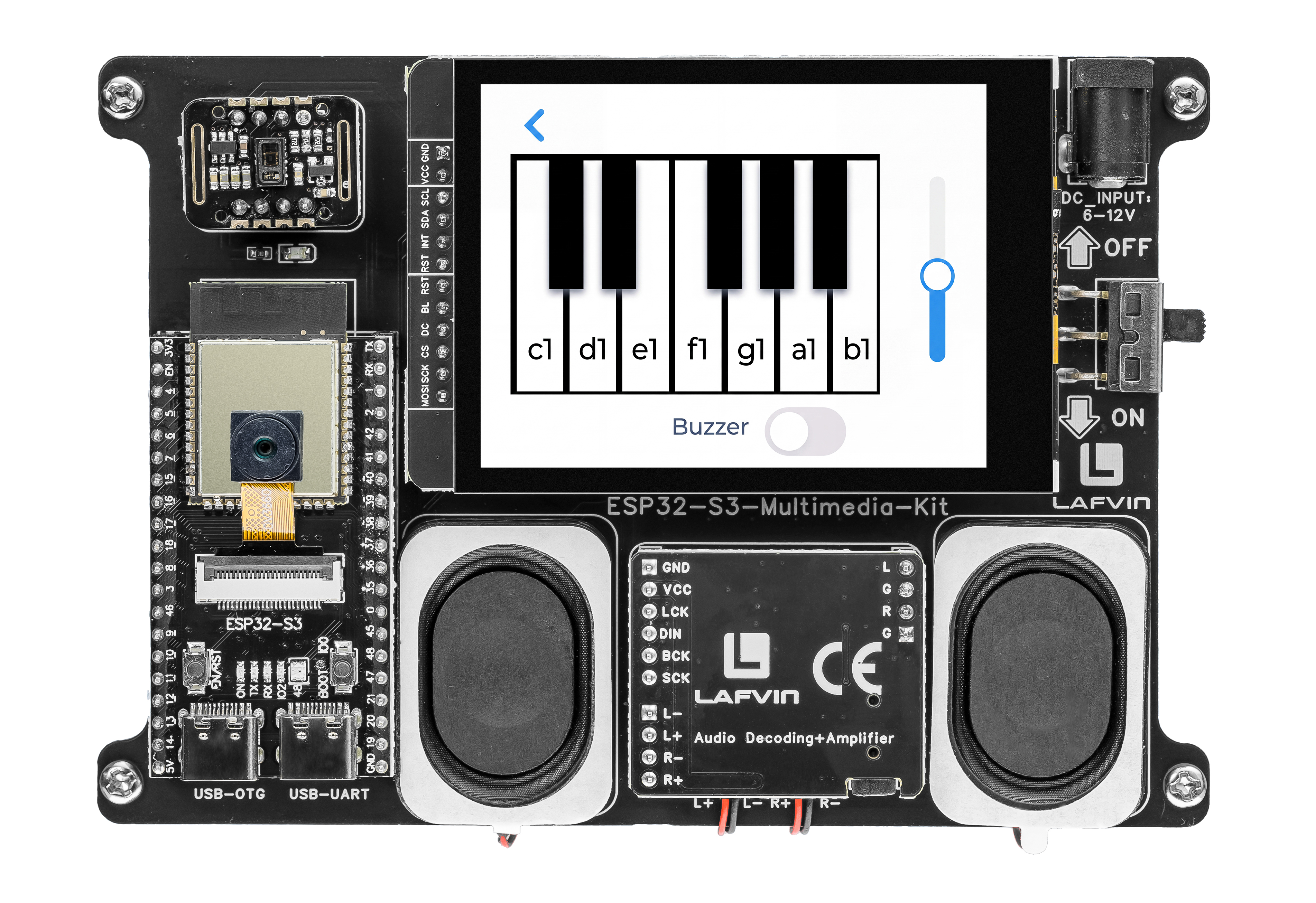
This example creates an interactive piano keyboard with seven white keys and five black keys, arranged in a realistic layout. Each key plays a specific musical note through the passive buzzer using PWM frequencies. A volume slider and power switch round out the interface.
What You’ll Learn
Designing a multi-button layout with overlapping widgets (black keys over white keys)
Generating musical frequencies with
ledcWriteTone()Using a slider for volume control
Building a power switch that enables or disables the entire keyboard
Before You Begin
Complete the setup steps in Preparation before continuing.
Note
Use the recommended Arduino IDE settings in Recommended Board Settings unless this lesson says otherwise.
Open the example sketch from the code package:
LAFVIN-ESP32-S3-Multimedia-Kit-main/2.LVGL/12_LVGL_Buzzer/12_LVGL_Buzzer.ino
This example uses the onboard passive buzzer. No external wiring is required.
Signal |
ESP32-S3 |
|---|---|
BUZZER |
GPIO 45 |
Upload and Test
Connect the board with a USB Type-C data cable.
Open
12_LVGL_Buzzer.inoin Arduino IDE.In the Tools menu, select
ESP32S3 Dev Moduleas the board and choose the correct serial port.Click Upload.
The screen shows a one-octave piano keyboard (C4 to B4):
Seven white keys in a row at the bottom
Five black keys (C#, D#, F#, G#, A#) positioned between the white keys
A volume slider at the right
A power switch to enable or disable sound output
Make sure the power switch is on, then tap any key. You should hear the corresponding musical note from the onboard buzzer. Drag the volume slider to adjust loudness.
How the Code Works
The buzzer piano logic is mainly implemented in Buzzer_ui.cpp.
Note Frequencies
Each piano key is defined by a PianoKey struct pairing a note name with its frequency in Hz. Seven white keys form a C4–B4 octave.
struct PianoKey {
  const char *name;
  uint16_t frequency;
};

constexpr PianoKey kPianoKeys[PIANO_KEY_COUNT] = {
  {"c1", 262},
  {"d1", 294},
  {"e1", 330},
  {"f1", 349},
  {"g1", 392},
  {"a1", 440},
  {"b1", 494},
};
Five decorative black keys are rendered as overlapping lv_obj panels positioned between the white keys via a fixed kBlackKeyX[] coordinate array.
Key Press & Release
The key_event_handler() listens for three LVGL events: LV_EVENT_PRESSED starts the tone, while LV_EVENT_RELEASED and LV_EVENT_PRESS_LOST both stop it — this prevents stuck notes when a finger slides off the button.
void key_event_handler(lv_event_t *e) {
  const uint8_t key_index = static_cast<uint8_t>(reinterpret_cast<uintptr_t>(lv_event_get_user_data(e)));
  const lv_event_code_t code = lv_event_get_code(e);

  if (code == LV_EVENT_PRESSED) {
    s_active_key = static_cast<int8_t>(key_index);
    buzzer_play_frequency(kPianoKeys[key_index].frequency);
    return;
  }

  if (code == LV_EVENT_RELEASED || code == LV_EVENT_PRESS_LOST) {
    if (s_active_key == static_cast<int8_t>(key_index)) {
      s_active_key = -1;
      buzzer_stop_output();
    }
  }
}
The buzzer_play_frequency() helper guards against three conditions — buzzer disabled, volume at zero, or frequency at zero — and stops output in any of those cases.
void buzzer_play_frequency(uint16_t frequency) {
  if (!s_buzzer_enabled || s_volume == 0 || frequency == 0) {
    buzzer_stop_output();
    return;
  }

  ledcWriteTone(BUZZER_PIN, frequency);
  ledcWrite(BUZZER_PIN, s_volume);
}
Volume & Power Switch
The volume slider (range 0–255) updates the active key in real time — if a key is held down while the slider moves, the PWM duty adjusts immediately. The power switch toggles s_buzzer_enabled and stops output when turned off.
void volume_slider_event_handler(lv_event_t *e) {
  if (lv_event_get_code(e) != LV_EVENT_VALUE_CHANGED) {
    return;
  }

  s_volume = static_cast<uint8_t>(lv_slider_get_value(g_buzzer_ui.volume_slider));

  if (s_active_key >= 0) {
    buzzer_play_frequency(kPianoKeys[s_active_key].frequency);
  } else {
    buzzer_stop_output();
  }
}

void power_switch_event_handler(lv_event_t *e) {
  if (lv_event_get_code(e) != LV_EVENT_VALUE_CHANGED) {
    return;
  }

  s_buzzer_enabled = lv_obj_has_state(g_buzzer_ui.power_switch, LV_STATE_CHECKED);

  if (!s_buzzer_enabled || s_active_key < 0) {
    buzzer_stop_output();
    return;
  }

  buzzer_play_frequency(kPianoKeys[s_active_key].frequency);
}
In the provided sketch:
The PWM channel uses 8-bit resolution via
ledcAttach(BUZZER_PIN, 1000, kPwmResolution)Black keys are
lv_objpanels withLV_OBJ_FLAG_CLICKABLEcleared — they are purely decorativeLV_EVENT_ALLis used on key buttons to capture both press and release in one callback
Try This Next
Add a second octave (C5 to B5) for a wider range
Record the notes you play and add a playback button
Change the instrument sound by using a different waveform in PWM